How to create an approval request for the supplier
This guide provides step-by-step instructions to create an Approval Request for a supplier within a workflow in LinkFlow Sistemas.
📌 Target audience: Users responsible for managing flows and creating art request approvals for suppliers.
Instructions
1. Access the workflow
- Access the flow of the desired item.
2. Advance the stage
- Click the Advance stage button.
- A modal to define the next workflow stage will appear.
3. Define the supplier stage
- Select the supplier stage.
- Choose the supplier that should receive the request.
4. Create the Approval
- Check the Create approval option.
- Enter the number of requests.
- Define the responsible approval team.
- If needed, select the files you want to share with the supplier.
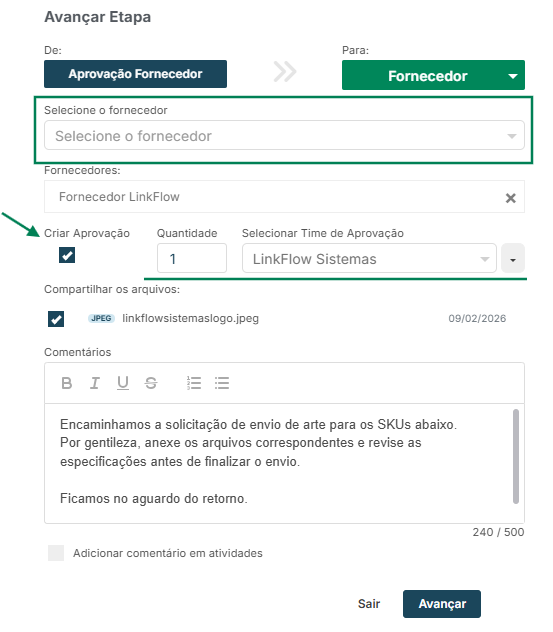
💡 Important: The files available for sharing are those already saved in the workflow directories.
5. Add comments
- Use the Comments field to send instructions and additional information to the supplier.
- This comment will be sent together with the request.
6. Complete the submission
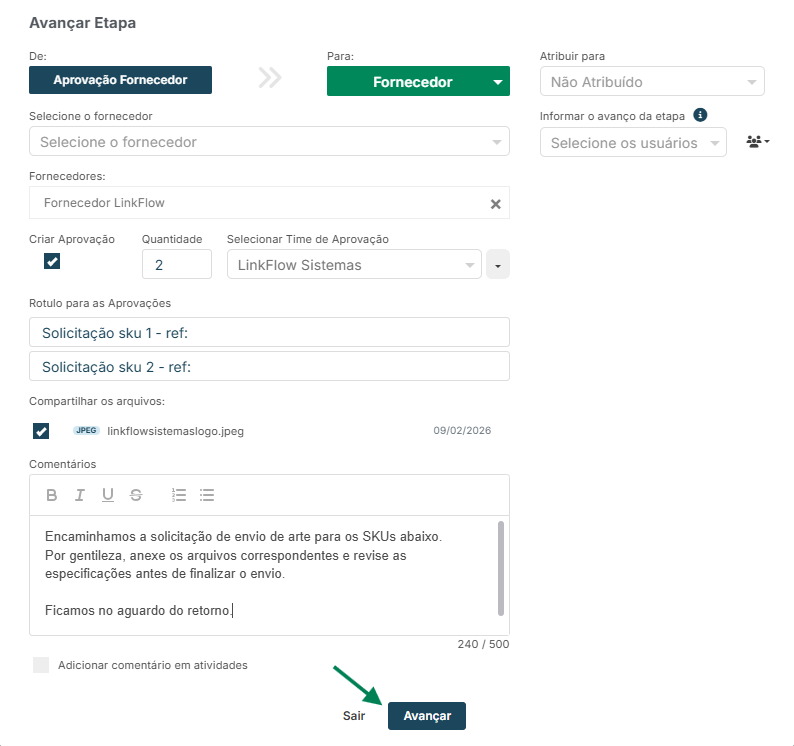
- After reviewing all information, click Advance.
- The request will be sent automatically to the supplier.
Done! Now you know how to create an approval request for a supplier in LinkFlow.