How to send an approval [Via email]
This guide provides step-by-step instructions to help the supplier send artwork files through an Stage Request in LinkFlow Sistemas.
📌 Target audience: Suppliers and agencies responsible for sending artwork for approval.
Interactive Guide
Instructions
1. Receive the Notification
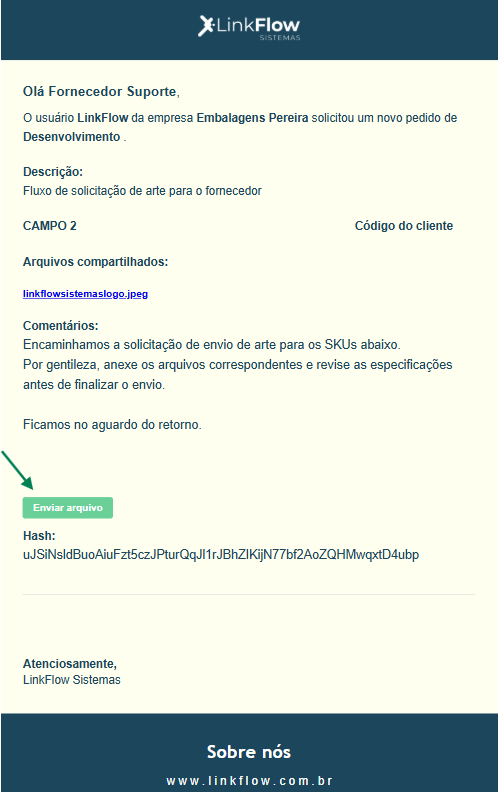
- The supplier will receive an email with subject “New Packaging Request”.
- This email will include the main request information and the files shared by the organization.

2. Access the Request
- In the received email, review the comments and shared files.
- Then click the Send file button.
- When clicked, the request screen will open for viewing and interaction.
3. Send the Artwork
- Click the Send file button.
- A New Approval screen will appear.
4. Attach the File
- In the upload modal, click "Click or drag your file here".
- Select the desired artwork file or drag it directly into the field.
5. Fill in the Information
In the observations field, enter any additional comments or notes.
- Correctly provide:
- Name of the person responsible for sending the approval;
- Email of the person responsible for sending the approval.
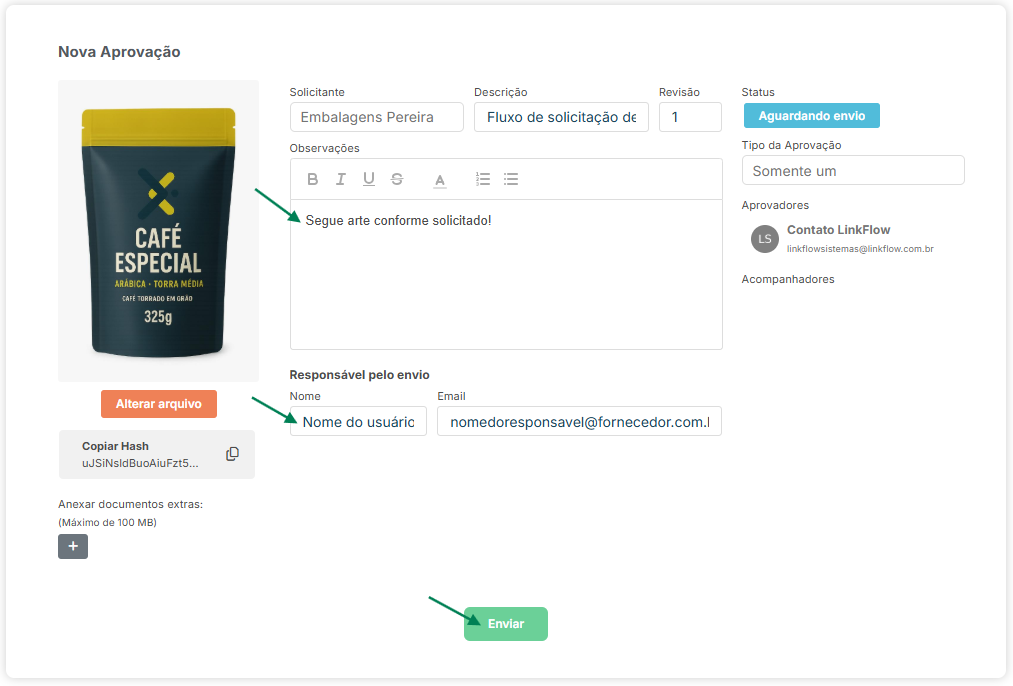
💡 Important: The responsible person listed will be notified by email whenever the artwork is approved or rejected.
6. Submit the Request
- After filling in all required fields and attaching the file, click Send.
- The artwork will be sent for review and approval.
Done! Now you know how to send artwork via Stage Request in LinkFlow.
If you have doubts, contact the organization responsible for the request.