How to grant supplier access to the Brands module
This guide presents step-by-step instructions to release the supplier's access to the Brands module, allowing viewing of brand, product and SKU in LinkFlow Sistemas.
📌 Target audience: Administrator users responsible for registering and managing suppliers.
Interactive Guide
Instructions
1. Register the Supplier
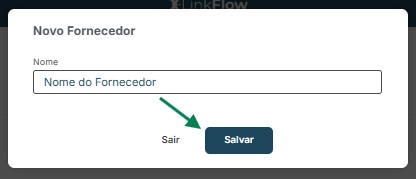
- Access the Suppliers module.
- Click on New Supplier.
- Fill in the Supplier Name field and click Save.
2. Register the Supplier User
- Click on the desired supplier.
- Within the supplier registration, click on Add User.
- Fill in the Name and Email fields.
💡 The provided email will be used for system access and receiving notifications.
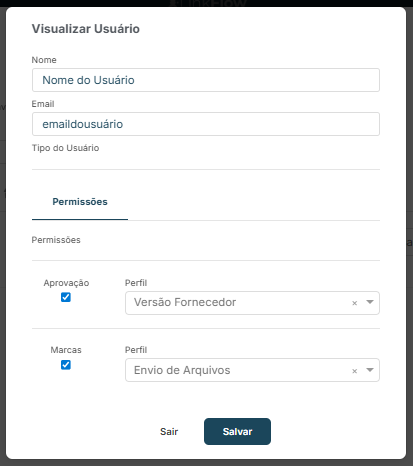
3. Define access permissions
- In the supplier user registration, locate the Permissions section.
- Enable access to the Brands module and other necessary permissions.
- Click Save to confirm the changes.
🔐 About Permissions
Permissions determine which modules the user can access and which actions they can perform within the system.
They should be assigned according to the supplier's profile and responsibility.
Approval
- Supplier Access: View all art requests sent to the supplier.
- Creation / Editing: Create, view and edit all unit approvals.
- Viewing: Only view unit approvals.
Brands
-
File Sending:
- View files made available in Brands, Products and SKUs;
- Download these files;
- Send (upload) files in shared directories.
-
Download Only:
- View files made available in Brands, Products and SKUs;
- Download these files;
- Does not allow sending (upload) of files.